 Mesh++ by Polyprod
How to convert an STL to a solid body in Autodesk Fusion
Insert the mesh, then use Mesh › Modify › Convert Mesh. Its Faceted method, the only one in Fusion for Personal Use, gives a solid made of one flat face per triangle: valid, but hard to edit. Prismatic (paid Fusion subscription) merges the planes and cylinders of mechanical parts, and Organic (Fusion Design Extension) handles scans and organic shapes. For editable faces on any licence, remodel the part from mesh sections, or convert it with an add-in such as Mesh++.
Why an STL is not a solid
An STL file stores only triangles: thousands of small flat facets that approximate the surface of the part. It has no faces, edges or features. Fusion inserts it as a mesh body, which you can view, measure roughly and print, but not edit with Press Pull, Hole, Fillet or Shell. To edit it, the triangles must become a solid body (B-Rep) made of real faces.
The question is what kind of faces you get. That decides whether the result is a solid you can work with, or a heavy copy of the triangles.
Step 1: insert and check the mesh
- In the Design workspace, choose Insert › Insert Mesh and pick your STL, OBJ or 3MF file. Check the unit in the dialog: an STL has none, and a part in inches inserted as millimetres is 25.4 times too small.
- A body with a warning icon in the browser has defects (holes, flipped triangles). Fix them first with Mesh › Prepare › Repair: a mesh that is not closed cannot become a solid, only a surface. See how to repair an STL in Fusion.
- If the mesh has several hundred thousand triangles, reduce it with Mesh › Modify › Reduce before a Faceted or Prismatic conversion.
Option A: Convert Mesh, built into Fusion
Select the mesh body, then Mesh › Modify › Convert Mesh. Choose the operation (Parametric keeps the mesh in the timeline, Base Feature does not) and one of three methods:
| Method | What you get | Licence |
|---|---|---|
| Faceted | One planar face per triangle. Exact, but a hole of a few millimetres becomes dozens of slivers; editing commands rarely work. | All, including Fusion for Personal Use |
| Prismatic | Planes, cylinders and other prismatic shapes merged into single faces, from face groups (Mesh › Prepare › Generate Face Groups). Good for machined parts. | Paid Fusion subscription; not in the Personal licence |
| Organic | A smooth solid or surface for scans and sculpted shapes. | Fusion Design Extension |
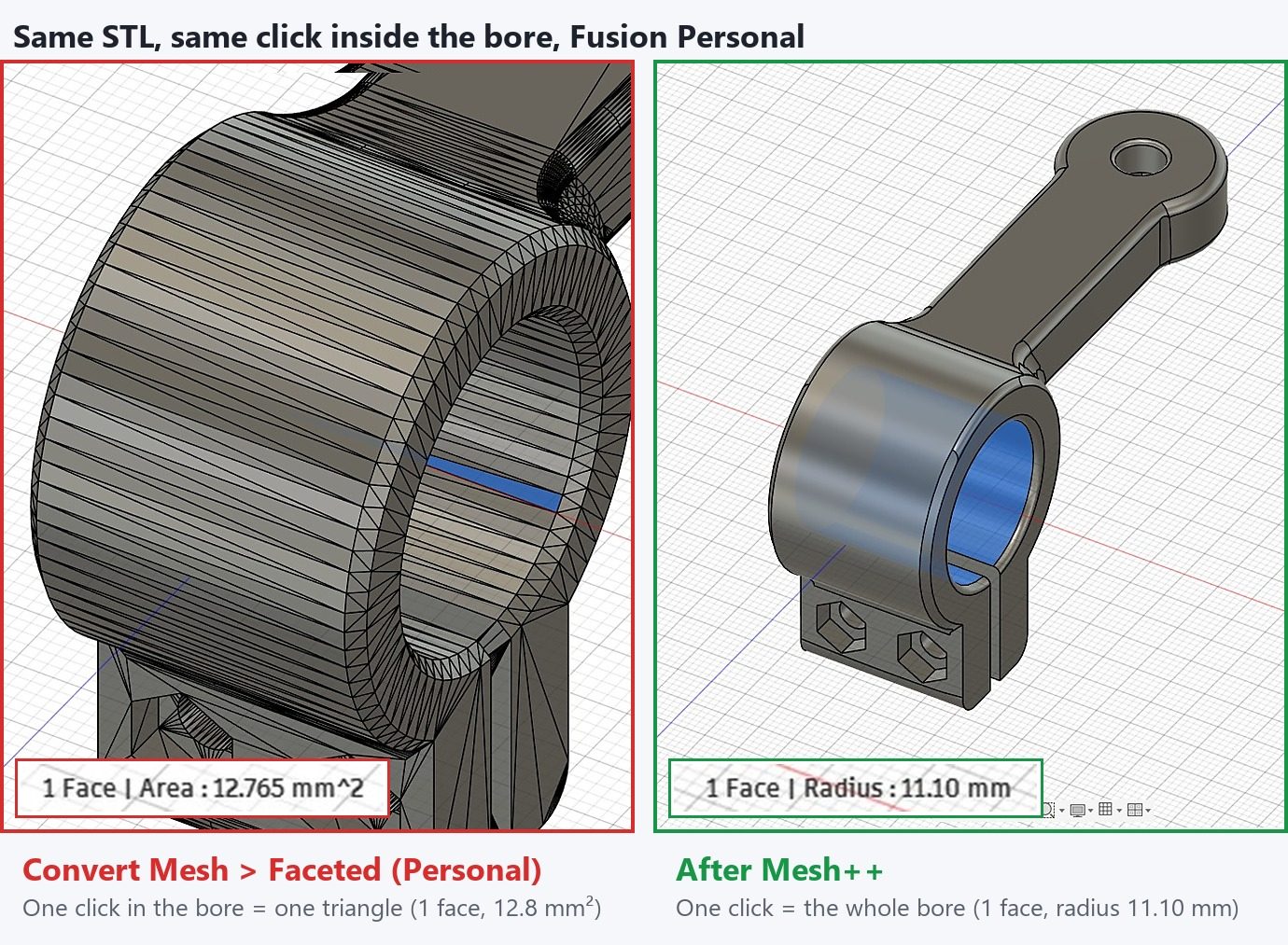
On the Personal licence, Faceted is the only choice, and that is where most people get stuck: the conversion succeeds, but the bore above is still made of many thin faces, so Press Pull, Hole and Fillet fail or give strange results.
Option B: remodel the part from mesh sections (free)
The mesh can serve as a reference for a new model. This works on every licence and gives a clean parametric part:
- Mesh › Create › Create Mesh Section Sketch, then pick the mesh. Fusion places a section plane through it; move it where the profile is clearest.
- Edit the sketch and tick Slice in the sketch palette, otherwise the mesh hides the section.
- Create › Fit Curves to Mesh Section. Prefer Line and Arc and pick points on the section: a Closed Spline is quicker but wobbles between the mesh points, so the faces will not be flat.
- Extrude the profile, add other sections to cut it, then redo the holes, fillets and chamfers with normal features, measuring the mesh.
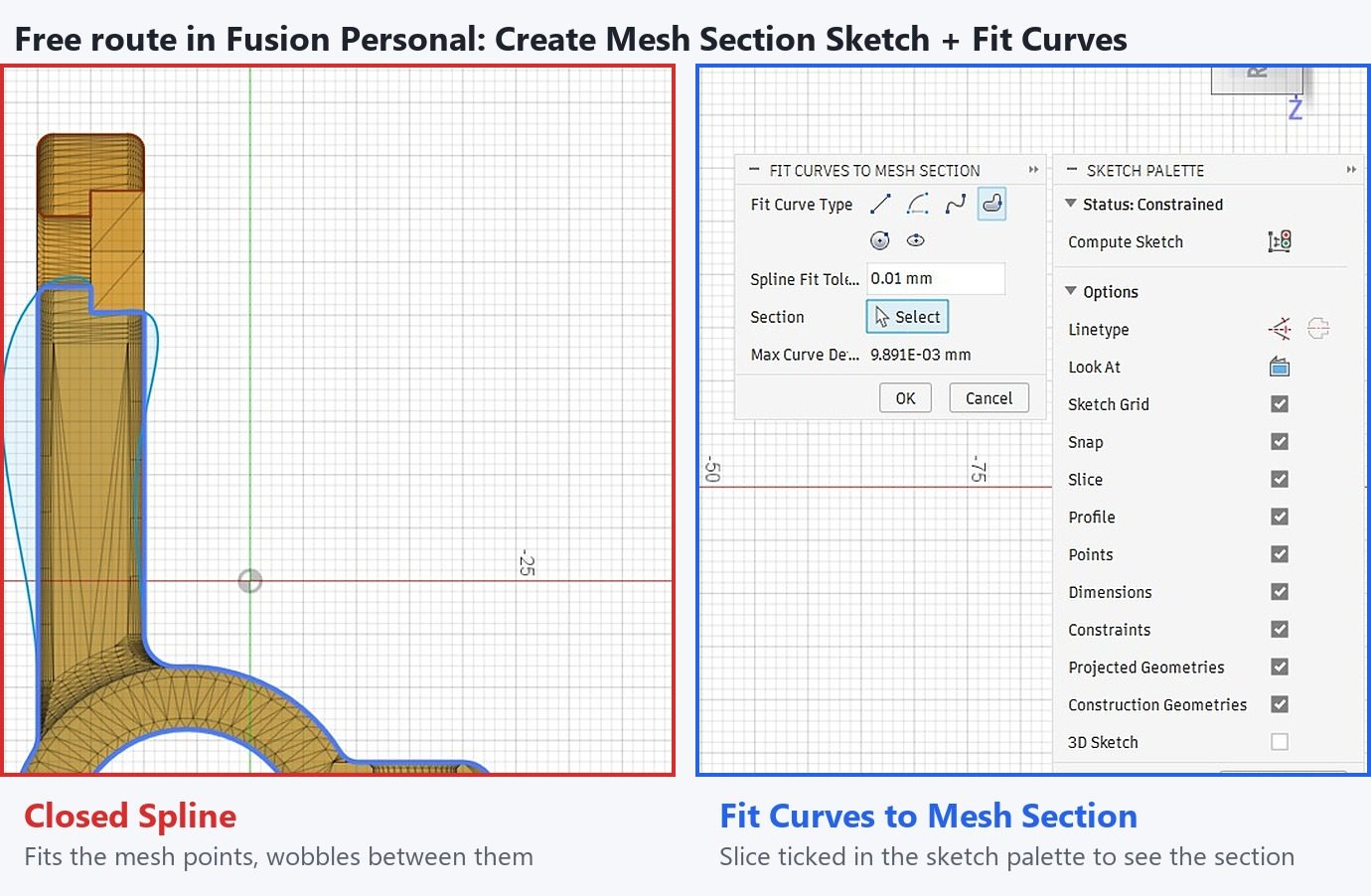
The result is excellent, but it is a full redraw: fine for a bracket, slow for a part with many fillets, and not realistic for an organic shape.
Option C: convert with Mesh++
Mesh++ is a Windows add-in for Autodesk Fusion that converts the mesh into real faces, on every Fusion licence, including Personal. It adds two conversions to a Mesh++ tab:
- Mesh to Brep – Mechanical for CAD-exported parts: planes, cylinders, cones, spheres, tori and B-spline faces, with each fillet as a face of its own, in one closed solid. An option rebuilds recognised parts as native sketches and features (extrusions, revolutions, holes, counterbores, pockets). See reverse engineering an STL.
- Mesh to Brep – Organic for scans and sculpts: a quad layout, then a T-Spline converted to a smooth solid. See turning a 3D scan into a solid.
Select the mesh, click OK. The message gives the number of faces of each kind and the measured deviation between the mesh and the solid; tolerances are never relaxed silently, and the original mesh is kept. Everything runs on your computer: the model is never uploaded.
Which route should you take?
| Your situation | Best route |
|---|---|
| You only need to print, measure or add a few simple bodies around the mesh | Keep the mesh, or Faceted |
| Simple prismatic part, paid Fusion subscription | Convert Mesh, Prismatic |
| Simple part, any licence, time is not an issue | Remodel from mesh sections |
| Part with many fillets, holes and angles, any licence | Mesh++ Mechanical |
| 3D scan, sculpt, organic shape | Mesh++ Organic, or Convert Mesh Organic with the Design Extension |
Watch the three routes on the same part
This four-minute video shows the Faceted conversion, the free remodelling route (from 1:07), Mesh++ (from 2:12) and a 3D scan of a car rim (from 3:04), in Fusion for Personal Use.
Sources: Autodesk Fusion help, Convert Mesh and Repair; Autodesk support, “The Prismatic option is missing in the Convert Mesh menu” (August 2026). Licences and menus checked in November 2026; Autodesk may change them.
Frequently asked questions
Can I convert an STL to a solid with Fusion for Personal Use?
Yes, but only with the Faceted method, which makes one flat face per triangle. Prismatic is not included in the Personal licence, and Organic needs the Fusion Design Extension. For faces you can edit, remodel the part from mesh sections, or use an add-in such as Mesh++, which works on the Personal licence.
Why do Press Pull, Hole or Fillet fail on my converted STL?
After a Faceted conversion, a hole or a rounded face is made of dozens or hundreds of thin planar faces. Fusion edits faces, so it cannot treat them as one cylinder or one fillet. You need a conversion that merges them into real planes, cylinders and fillets.
Does converting a mesh change its shape?
Faceted keeps the triangles exactly. Any method that fits real surfaces (Prismatic, Organic, Mesh++) moves the result slightly away from the triangles, within a tolerance. Mesh++ measures this deviation between the mesh and the solid and reports it after every conversion.
My mesh is huge. Should I reduce it first?
For Convert Mesh, yes: millions of triangles make Fusion slow, and a Faceted solid of that size is unusable. Use Mesh > Modify > Reduce first. Mesh++ simplifies large scans and organic meshes by itself before rebuilding them, and converts scans of several million triangles.
Which file formats can I convert?
Fusion inserts STL, OBJ and 3MF meshes (Insert > Insert Mesh). The Mesh++ Insert Mesh command also reads PLY, glTF, FBX, AMF, OFF, USD, VRML and about twenty other formats, so a scan or a model from another application can be converted the same way.
Mesh++ for Autodesk Fusion
Meshes, scans and STL files into real solids, inside Fusion. Windows, lifetime licence from 49 €, all updates included.